

9 min read


Standard cost in NetSuite helps bring consistency to how inventory and manufacturing costs are tracked, and the setup and ongoing cost updates involve several key moving parts.
In this blog, we’ll break down the high-level workflow so you can better understand how standard costs are defined, rolled up, and revalued within the system.
NetSuite Standard Cost High-Level Workflow:
1. To use standard costing with inventory and assembly items, enable the Standard Costing feature.
2. Create Cost Categories:
Cost categories are used to classify the type of inventory item so that you can categorize manufacturing variances. For standard costing, set up cost categories and assign them a material or service cost type.
3. Configure Item Records:
On item records, select standard cost as the costing method for assembly items and inventory items. When an item uses standard costing, variances are generated based on differences between the item fixed and actual costs.
You can also select a standard costing method for lot or serial numbered items. For service items and inventory items, assign a cost category to help identify variances.
4. Define Cost Versions:
If you expect standard costs to change over time, or costs to vary based on location, you can establish multiple cost versions. For example, if costs change quarterly, you can establish four cost versions establishing standard costs for each quarter.
5. Set Item Standard (Location Default) Costs
For Inventory-type items, set the Default cost on the Location sublist for each location in which you want to establish a standard cost.
6. Roll up Standard Costs to set the standard cost of inventory items, and calculate the total cost of assemblies.
The cost roll process creates Planned Standard Cost records for both Inventory and Assembly type items. Assembly Planned Standard Cost records contain the current cost of the Assemblies components set on the item’s bill of materials.
7. Revalue Inventory and update standard costs. Revaluing inventory updates the standard cost of items and identifies the effective cost date. Revaluation can be run using the following methods:
- As a bulk process using existing cost version records.
- Entering new costing data manually.
This process also runs an inventory revaluation which reviews your inventory and revalues it based on current standard cost changes.
8. When you Enter a Transaction, general ledger lines post variance to the appropriate accounts based on the differences between the actual and standard costs.
Cost Roll & Inventory Revaluation:
Cost Version:
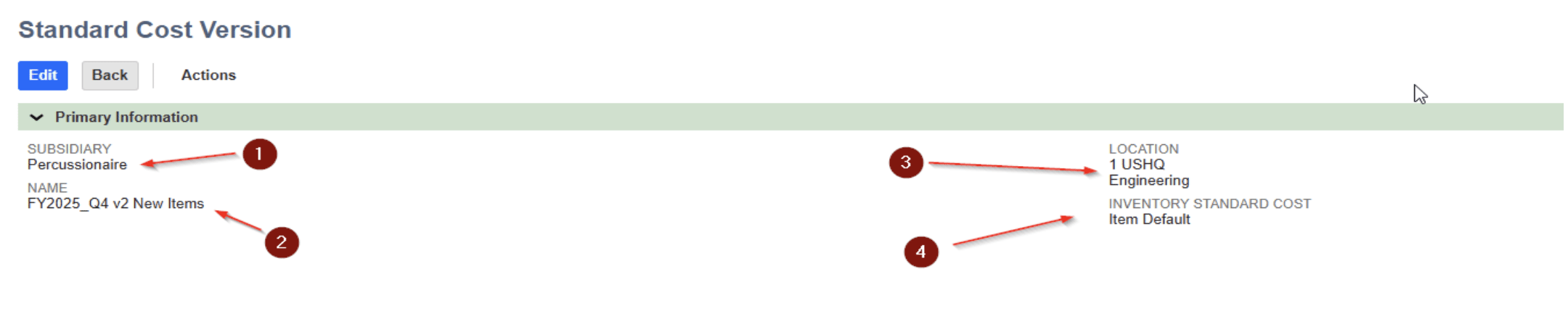
- Subsidiary
- Unique Name Identifier
- Location driven by Subsidiary selection
- Inventory Standard Cost method:
- Average Cost: Sets the Planned Standard Cost to the Average Cost of the Location
- Item Default: Sets the Planned Standard Cost to the cost defined in the Location Default Cost
- Last Purchase Price: Sets the Planned Standard Cost to the most recent inventory-affecting transaction cost
Cost Roll:
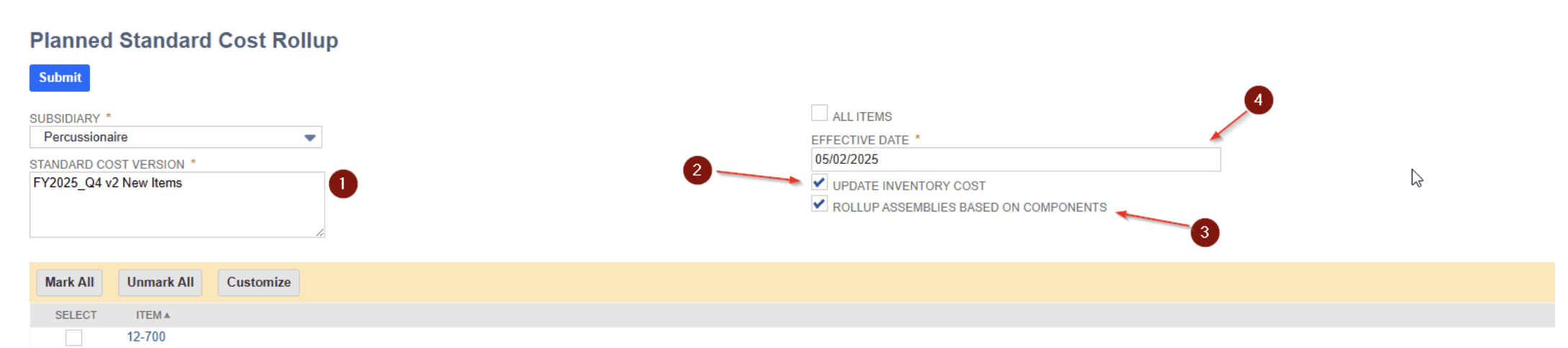
-
Select one or multiple Standard Cost Versions
-
Select Update Inventory Cost (T/F) behavior described below:
-
Update Inventory Cost = F
-
Only Assembly/Bill of Materials Type would appear (excl. Parent Matrix Items)
-
Supply Type = Build > No Planned Standard Cost record would be created.
-
Supply Type = Purchase > Planned Standard Cost records would be created based on Location Standard Cost
-
All Items = T > All Assembly/Bill of Materials item records would be updated.
-
-
Update Inventory Cost = T
-
Assembly, Inventory Item, Other Charge, Non-Inventory Item for Purchase, Service (excl. Parent Matrix Items)
-
Assembly Item > Supply Type = Purchase > Assembly would be rolled up along with components, sub-assemblies, and sub-assembly components.
-
Assembly Item > Supply Type = Build > Assembly would be rolled up along with components, sub-assemblies, and sub-assembly components.
-
Assembly Item > Rollup assemblies based on components = T (regardless of Supply Type) > Assembly would be rolled up along with components, sub-assemblies, sub-assembly components, and parent assemblies (would not include same level component of the Assembly Record, e.g. if the Parent Assembly has other components besides the Assembly Item).
-
Inventory Item > Rollup assemblies based on components = F > Only Inventory Item would be affected
-
Inventory Item > Rollup assemblies based on components = T > Component, Parent Assembly including higher level Assembly Record.
-
-
-
Rollup Assemblies Base on Components:
-
Select T/F if you want to select only the component, and Netsuite creates inventory revaluation entries for all the higher-level Assemblies.
-
-
Select Effective Date:
-
Date can be backwards (to catch cost changes in the past) or Forward (for a cost to go into effect at a future date.
-
Best Practice is to also set the same date on the associated Revalue Standard Cost Inventory submission
-
Revalue Standard Cost Inventory:
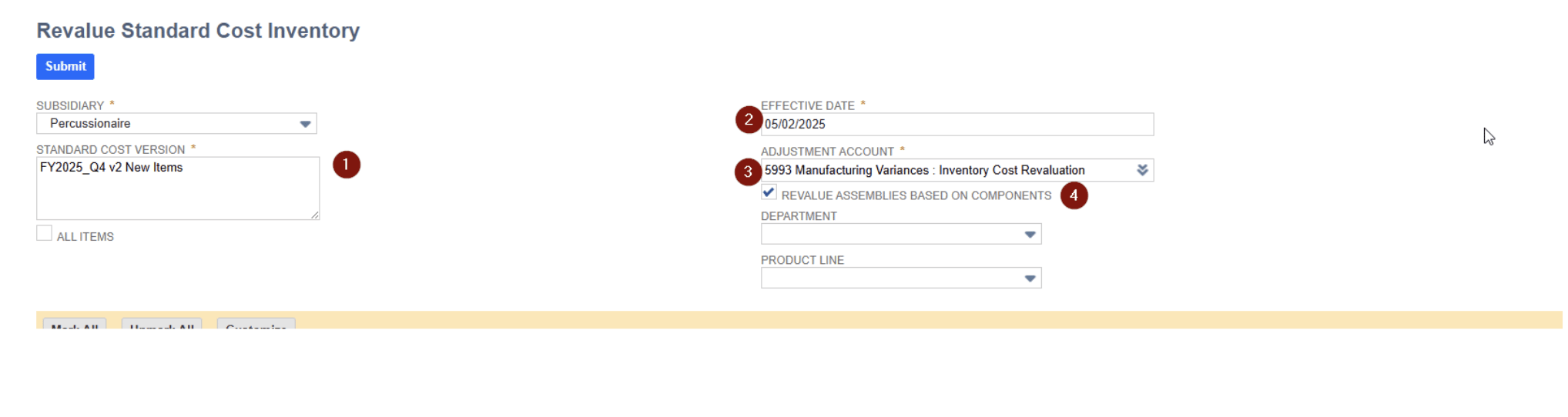
- Select Standard Cost Version
- Select Effective Date
- Select Adjustment Account to post cost revaluation adjustments
- Select Revalue Assemblies based on Components box to revalue all affected assemblies based on the component selected.
Additional Notes:
- If using Advanced Bills of Materials, the Assembly item needs to have a Bill of Materials set as the Master Default for the item.
- When setting an Inventory item’s default cost, cost must be expressed in the Purchased Unit of Measure set on the item record.
NetSuite Experts Here to Help!
Protelo’s certified NetSuite experts are here to assist your business with seamless configuration and support. With decades of NetSuite experience in your industry, we provide hassle-free guidance to customize, integrate, and enhance your operations.
Protelo’s experts can help with NetSuite projects such as:
- NetSuite Customizations, Development, and Integrations
- NetSuite Reporting, Analytics and Saved Searches
- NetSuite Business Process Optimization
- NetSuite Performance Optimization
- NetSuite Training & ACS Alternatives
Get On-Demand NetSuite Support Today!