

9 min read


Although negative on-hand quantity is physically impossible, NetSuite will let it happen. Left alone, it quietly corrupts your item costs and throws your inventory valuation out of balance.
Negative inventory is the data problem most teams don't know they have until it shows up in the numbers. In reality, of course, you can’t have less than zero items on a shelf. But NetSuite will record a negative quantity when transactions post out of order—and every one of those negatives is silently distorting your average cost and your balance sheet.
In this post, we'll cover how to find negative inventory, how to fix it correctly, and—just as important—how to fix the cause instead of just the symptom. (To avoid negative inventories in the first place, see How to Avoid Negative Inventory Situations)
Why Negative Inventory Is a Real Problem
It's tempting to treat a negative quantity as a cosmetic glitch or just a “temporary issue we’ll fix later.” It isn't. Countless times we have seen customers who draw their inventory negative in the hope/assumption that they will correct it later, only to realize that as months pass their inventory accuracy is worse than ever. A small hole is dug the first month and if it’s not immediately filled in, the hole is dug deeper over the months and before they know it they struggle to dig their way out!
Furthermore, when you're using average costing, NetSuite calculates unit cost from the quantity and value on hand. When the quantity of an item goes negative, that math breaks down—the system is trying to average across a quantity that can't exist, and the resulting unit cost can swing wildly. That bad cost then flows into every transaction that touches the item: cost of goods sold on your invoices, the value of your remaining inventory, and ultimately your margins and your balance sheet.
In other words, a negative quantity isn't just wrong in the warehouse—it's wrong in the general ledger. That's why finding and clearing negatives is a costing issue in addition to a housekeeping issue.
Why Negatives Happen
Negative quantities in NetSuite almost always come down to transactions posting in the wrong order or on the wrong date. The most common causes:
- Fulfilling ahead of the receipt — an item ships out before the purchase receipt for the same item has been entered, causing the outbound transaction to drive the on-hand quantity below zero.
- Backdated transactions — a receipt or fulfillment is entered with an effective date earlier than transactions already posted, reshuffling the running quantity.
- Bad or missing counts — a physical count or adjustment is posted – often times alongside examples listed above – so by the time the count turns into an adjustment, the incorrect adjustment quantity draws the item negative.
- Assemblies built before components are received — the assembly build consumes components that haven't been posted as on-hand yet.
The pattern is the same underneath all of these examples: something consumed inventory before it was received into NetSuite.
Step 1: Find Every Negative Item
You can't fix what you can't see, so start with a saved search that surfaces every item and location sitting below zero. Build an Item saved search filtered to locations where quantity on hand is less than zero, and return the item, location, and current quantity so you have a complete worklist in one place.
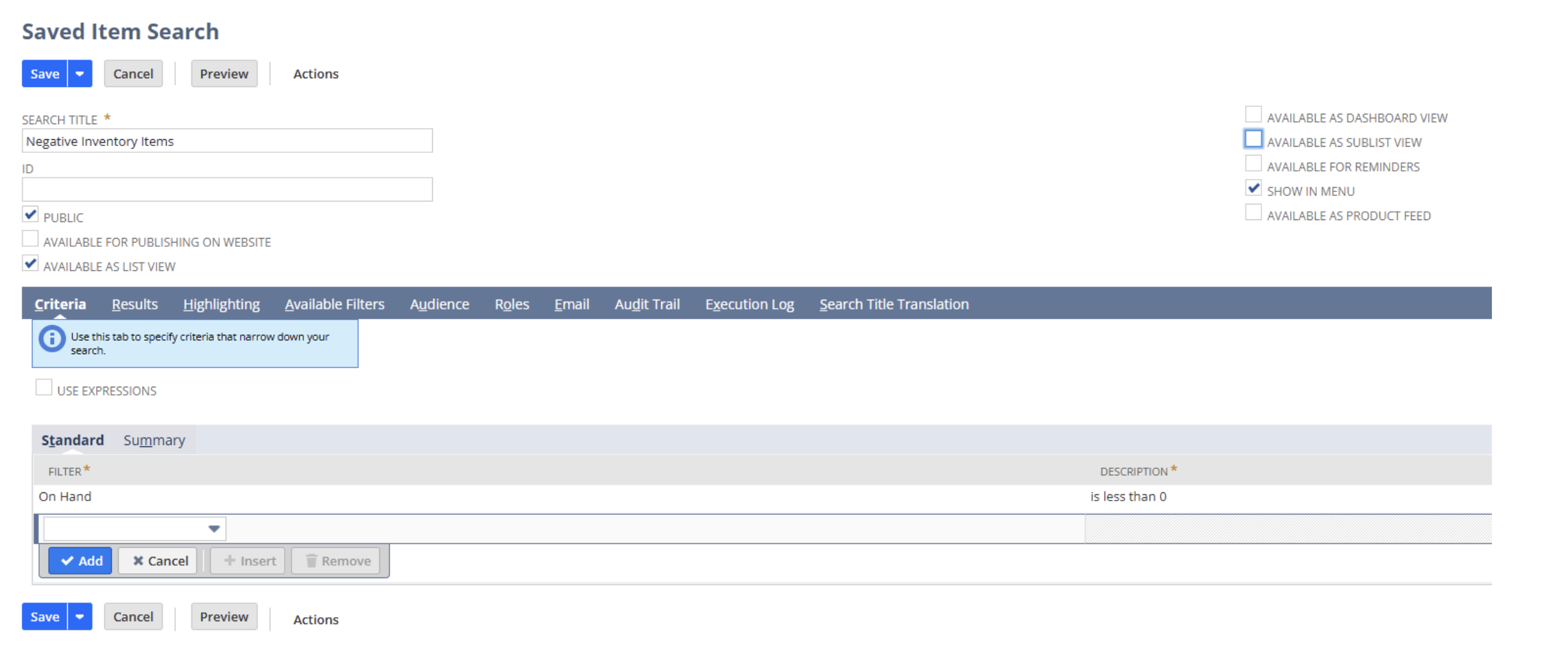
Item saved search Criteria tab showing On Hand is less than 0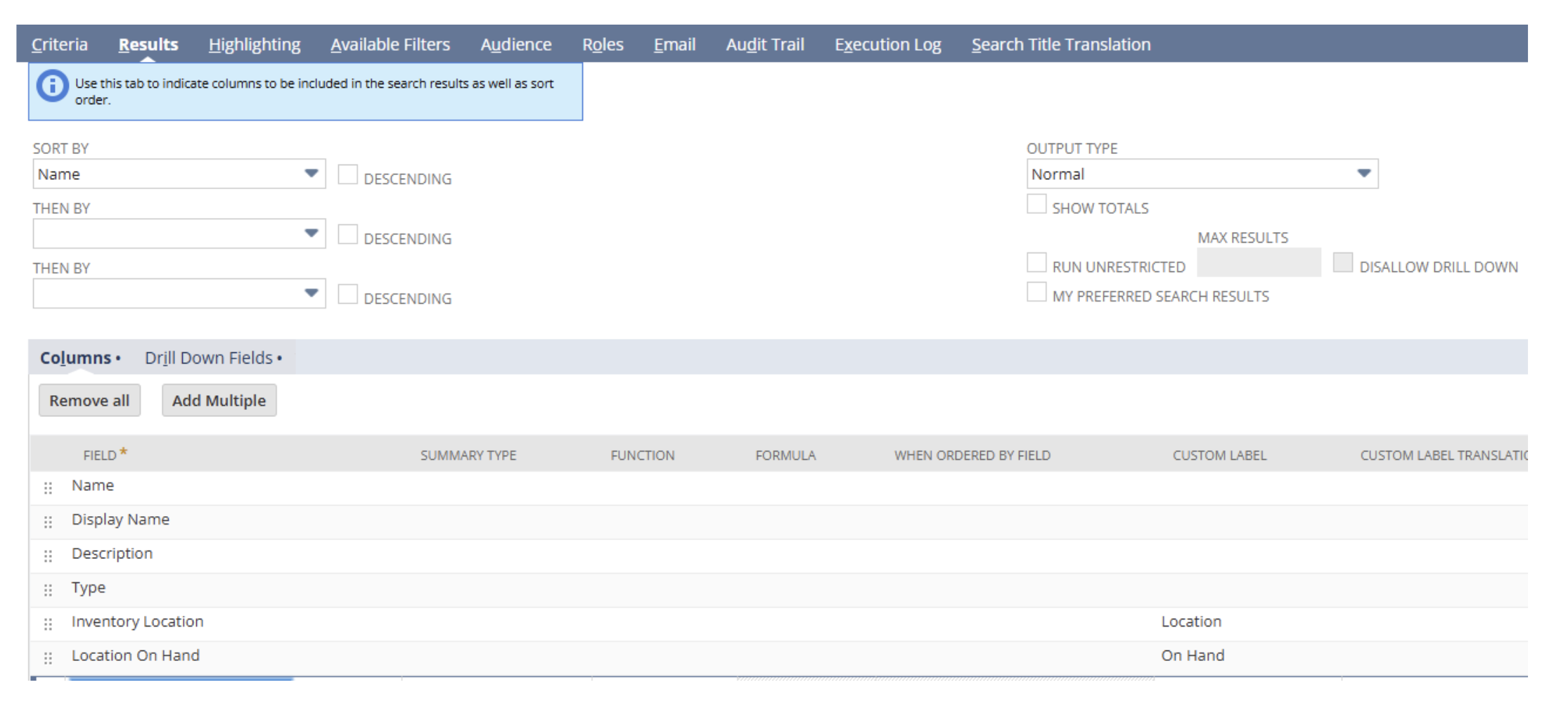
Item saved search Results tab showing the fields to populate
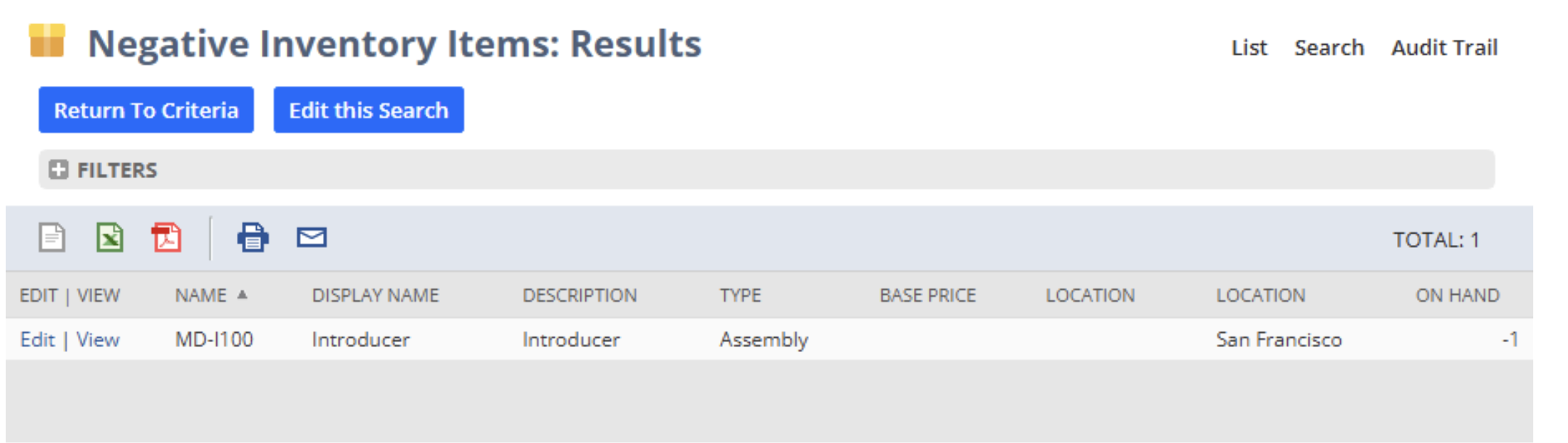
Results showing the items currently showing a negative quantity
Keep this search—you'll use it again to confirm your fixes worked, and it doubles as an ongoing monitor so new negatives get caught while they're still easy to trace.
Tip: Select “Available for Reminders” on the Saved Search and this can be used on the Reminders portlet on your dashboard. Throughout the day you can hit “Refresh” and if there are any results, you know immediately that there is an item with negative inventory to fix!
Step 2: Find the Cause, Not Just the Number
Here's the mistake to avoid: opening an inventory adjustment and simply bumping the quantity back up to zero. That makes the report look clean while leaving the real problem—and the bad cost—in place. Instead, drill into the item's transaction history and find the point where the running quantity went negative.
Almost always, you'll find an outbound transaction (a fulfillment, a build, an adjustment) dated before the inbound transaction that should have supplied it. The fix is to correct the sequence: ensure those who manage your inventory in NetSuite know the importance of entering their inventory as soon as possible once it’s physically received. It’s not always possible to process this right away, we understand, but the important thing is to prioritize this so that NetSuite sees this inventory before someone else tries to consume it. This could mean entering receipts as items are received, or ensuring staff backdates receipts to ensure the transaction posts prior to the transaction that consumes it. For example:
- If you purchase product X that regularly sit on the shelf for days or weeks before being sold, this is a lower priority than item Y that has an hourly turnaround time. Both are important, but the user receiving items X and Y need to understand the importance of prioritizing these, especially since item Y is much less forgiving in this example.
- If you produce things which are literally coming off of the conveyor belt and on to a truck to ship out, it’s crucial that someone is entering this inventory in real time to avoid drawing inventory negative.
You might say to yourself “it’s not a big deal if I go negative for 5 minutes as they load the truck and then someone processes the Work Order after the truck leaves.” For every customer who does this diligently, there are a handful that get caught in the “negative inventory” vortex and find it hard to get out. So do this only when necessary!
Note: You might be tempted to say to yourself “it’s not a big deal if I go negative for 5 minutes as they load the truck and then someone processes the Work Order after the truck leaves.” For every customer who does this diligently, there are a handful that get caught in the “negative inventory vortex” and find it hard to get out. So do this only when necessary!
There are multiple ways to find the transaction(s) responsible for drawing an item negative, including:
From the Item Record:
On the item record under the Related Records subtab we’re able to see the transactions posted to this item which will help determine where it was drawn negative:
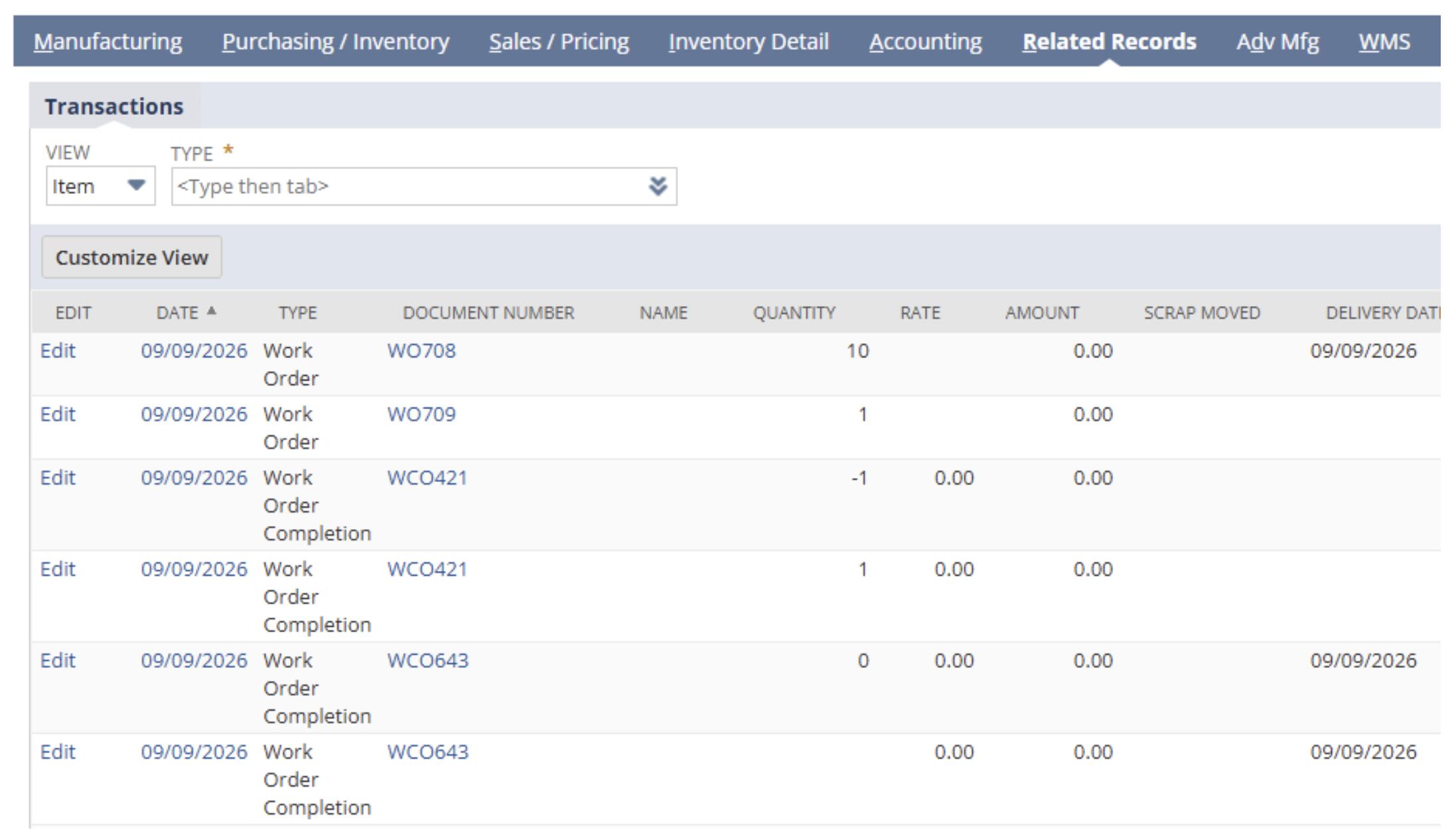
From the Inventory Activity Detail:
Run the Inventory Activity Detail report (Reports > Inventory > Inventory Activity Detail) and search for the item. This will display all transactions (in a given user selected date range) in order to see which transaction led to the inventory drawing negative:
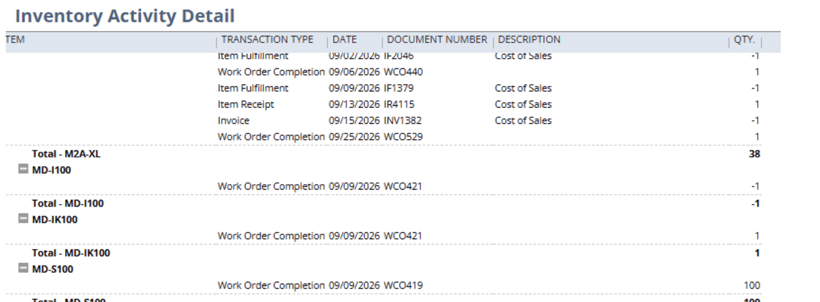
Notes: If you’re familiar with more advanced saved search techniques you can also utilize these to display transactions by item, filter to only transactions that post to the GL, and check the running total to see when it draws negative.
Correcting the order of transactions can trigger NetSuite to recalculate costs on everything that came after. That's the point—it repairs the downstream cost damage!
Step 3: When You Can't Fix the Sequence
Sometimes the underlying transaction is in a closed period, or the original document genuinely can't be changed. In those cases an inventory adjustment may be the pragmatic path—but treat an inventory adjustment as a last resort and be deliberate about it. Post the adjustment to a properly chosen account, document why, and understand that you're accepting the historical cost distortion rather than truly repairing it. Fixing the sequence is always the better outcome when it's available.
Step 4: Confirm and Keep Watching
After you've worked through the list, re-run your saved search on regular intervals. This could mean daily, weekly, or monthly depending on how often this situation arises. The ultimate goal is to run the saved search and be met with zero results – confirming your team is entering transactions in a timely manner.
The saved search can also be set on a schedule to email whoever owns inventory accuracy on a regular cadence—so the next negative surfaces within days instead of at month- or quarter-end when it's buried under months of transactions.
Finding and fixing negatives is the cure. The better long-term play is prevention: tightening the process and settings so fulfillments stop outrunning receipts in the first place. We cover that in How to Avoid Negative Inventory Situations.
NetSuite Experts Here to Help!
Protelo's certified NetSuite team helps businesses track down costing and inventory issues, correct them at the source, and put monitoring in place so they stay fixed. If your inventory valuation doesn't feel trustworthy, negative quantities are a common culprit—and we can help you find and clear them.
Protelo's experts can help with NetSuite projects:
• NetSuite Inventory and Warehouse Process Optimization
• NetSuite Business Process Optimization
• NetSuite Reporting, Analytics, and Saved Searches
• NetSuite Customizations, Development, and Integrations
• NetSuite Training and ACS Alternatives
Get on-demand NetSuite support today!