

7 min read
.jpg)
Cleaning up negative inventory after the fact is tedious and can distort your financials. Prevent these headaches by preventing negative inventories in the first place.
If you've ever had to hunt down negative on-hand quantities and untangle the costing mess they leave behind, you already know the cleanup is the expensive part. The good news is that negative inventory is largely preventable—through a mix of a system setting, a few process disciplines, and better visibility for the people entering transactions. In this post, we'll focus on prevention: the changes that keep quantities from ever going below zero.
The Root Cause, In One Sentence
Negative inventory happens when something consumes stock the system doesn't yet believe exists—almost always a fulfillment, build, or adjustment that posts ahead of the receipt that should have supplied it. Every prevention technique below illustrates different ways of closing the gap between when goods physically arrive and when they're recorded as on-hand.
Lever 1: Consider Blocking Negative Inventory Outright
By default, NetSuite allows inventory to go negative—it will record a fulfillment, build, or adjustment that drives an item's on-hand below zero without stopping you. There is no native checkbox that simply turns this off. To prevent it, you install a free NetSuite bundle called Enhanced Validations and Defaulting, which adds an option to “Prevent Negative Inventory.” Once enabled, a transaction that would drive on-hand below zero is blocked at the moment of entry rather than silently recorded—turning an invisible costing problem into a visible error that forces the receipt to be entered first.
Blocking negatives is powerful, but it isn't free: if your receiving genuinely lags your shipping, a hard block will stop fulfillment until the paperwork catches up. While this is genuinely a best practice to avoid negative inventory and all its downstream effects, whether you can implement this at your facility all depends on the receiving process and whether your users can keep pace processing these transactions as soon as possible.
To Install the Bundle:
- Go to Customization > SuiteBundler > Search & Install Bundles, and search for "Enhanced Validations and Defaulting" (Bundle ID 213294, published by NetSuite Platform Solutions Group)

Installing the Enhanced Validations and Defaulting bundle (Customization > SuiteBundler > Search & Install Bundles).
- Click on the bundle title, click the “Install” button, and wait for it to finish installing.
- After installation, navigate to Setup > Company > Company Preferences and click on the Custom Preferences subtab.
- The Prevent Negative Inventory checkbox appears under your company preferences on the Custom Preferences tab. Check that box to enforce the rule.
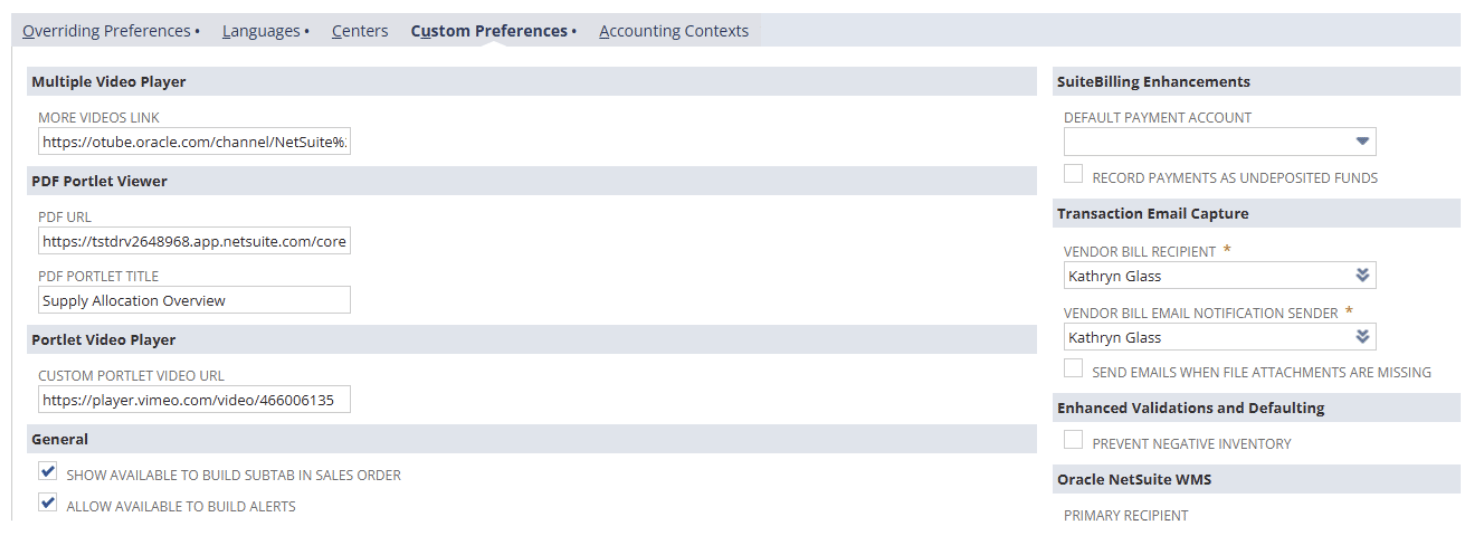
After installing the bundle, check Prevent Negative Inventory on the Custom Preferences tab.
Tip: If you have a sandbox environment, best practice is to test in sandbox first and confirm the behavior before enabling it in production.
Lever 2: Close the Receiving Gap
Most negative inventory scenarios are really a timing problem: the goods are on the dock and being shipped back out before anyone records the receipt. Tightening receiving is the highest-value process fix.
-
Receive before you ship. Make entering the item receipt a required step the moment goods arrive—not an end-of-day or end-of-week batch. Every hour a receipt sits un-entered is an hour an item risks going negative.
- Watch cross-dock and drop-ship flows. One of the greatest culprits for negative inventory are items that move straight from receiving to shipping. When the window between inbound and outbound is nearly zero, these deserve the tightest discipline.
- Don't let fulfillment run ahead of receipts. Where possible, sequence the workflow so an order can't be fulfilled against stock that hasn't been received yet.
Tip: If one or two locations or item categories produce most of your negatives, focus the process changes there first. Negative inventory is rarely evenly distributed—it clusters around specific fast-moving items and specific handoffs. Fix the cluster and you fix most of the problem.
Lever 3: Get Dates Right
Backdating is a quiet source of negative inventories. When a receipt or adjustment is entered with an effective date earlier than transactions that already posted, it reshuffles the running quantity and can push a previously fine balance below zero in the past.
Train the team to use accurate transaction dates, and be especially careful with any correction that requires backdating transactions. Review the item's transaction history to ensure transactions are dated properly to avoid negative inventory scenarios.
Lever 4: Make On Hand Quantities Visible at Order Entry
People create negative inventories partly because they don’t have easier visibility in to inventory levels. Ensuring that this information is visible on the Sales Order and Work Order forms, for example, increases the chances that someone sees a shortage and reports back to the warehouse to ensure receipts are entered. When users can see that available quantity is at or near zero, they're far less likely to push a transaction that drives it negative.
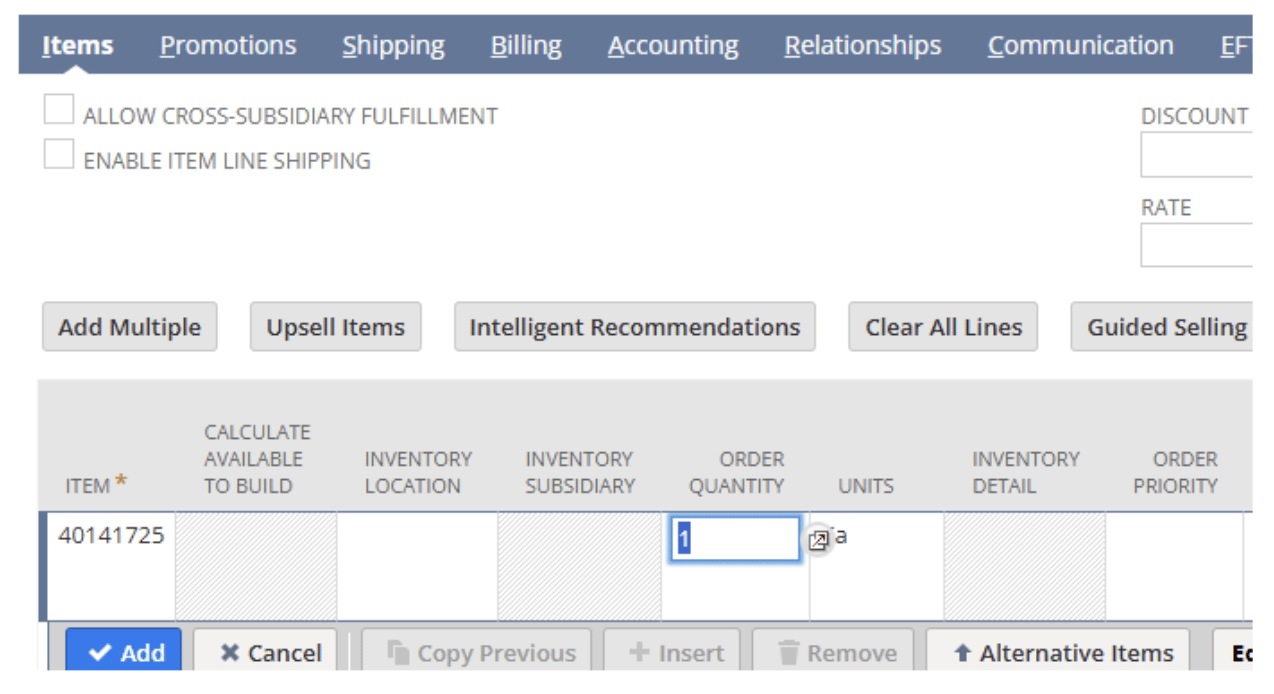
In the above example, the user can only see the quantity being ordered but not what’s on hand or available.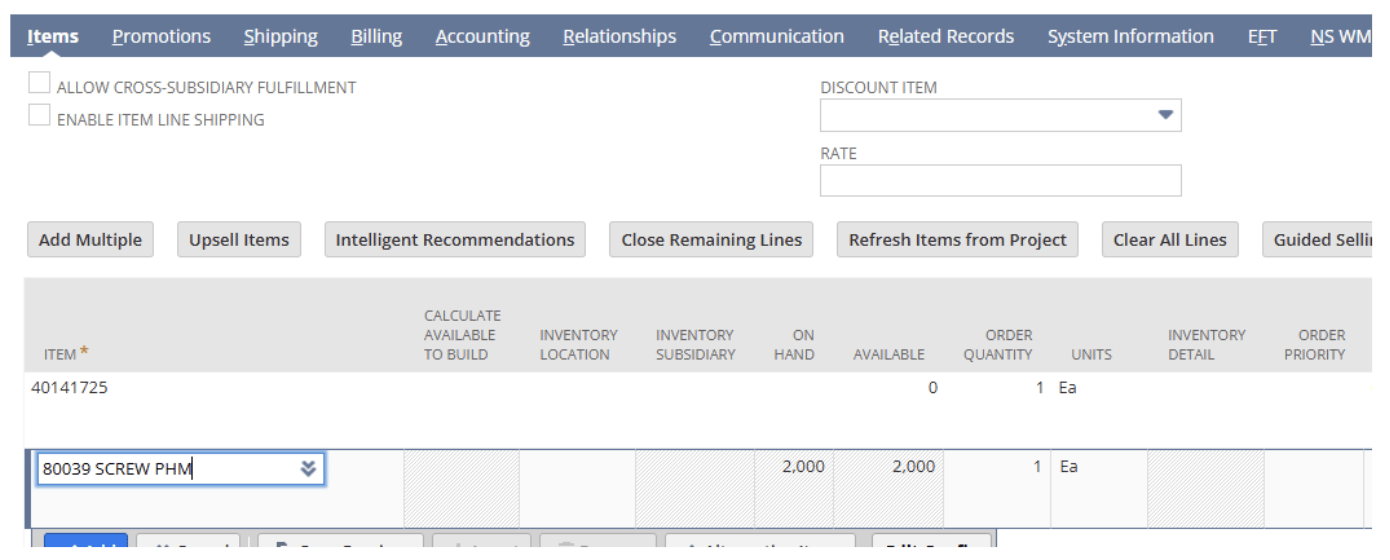
After editing the custom form, On Hand and Available fields are included to let the user know what’s available as they enter the order.
Lever 5: Monitor So Prevention Doesn't Slip
Even with the proper settings and processes in place, discipline erodes over time. Keep a negative-inventory saved search running on a schedule and emailing whoever owns inventory accuracy. If prevention is working, that report stays empty—and the day it doesn't, you'll know within days instead of discovering it instead of at month-end close. A standing monitor is what keeps a one-time fix from quietly becoming a recurring problem.
Preventing negative inventory isn't a single switch—it is...
- A setting that makes the error visible
- A receiving process that keeps records in step with reality
- A date discipline that avoids rewriting the past
- Visibility that helps people make the right call at order entry.
Layer these together and negatives go from a recurring cleanup chore to a rare exception.
NetSuite Experts Here to Help!
Protelo's certified NetSuite team helps businesses put the settings, processes, and monitoring in place to keep inventory accurate and costs clean—so you spend less time cleaning up data and more time acting on it. If negative inventory keeps coming back, we can help you find why and close the gap for good.
Protelo's experts can help with NetSuite projects:
• NetSuite Inventory and Warehouse Process Optimization
• NetSuite Business Process Optimization
• NetSuite Reporting, Analytics, and Saved Searches
• NetSuite Customizations, Development, and Integrations
• NetSuite Training and ACS Alternatives
Get on-demand NetSuite support today!